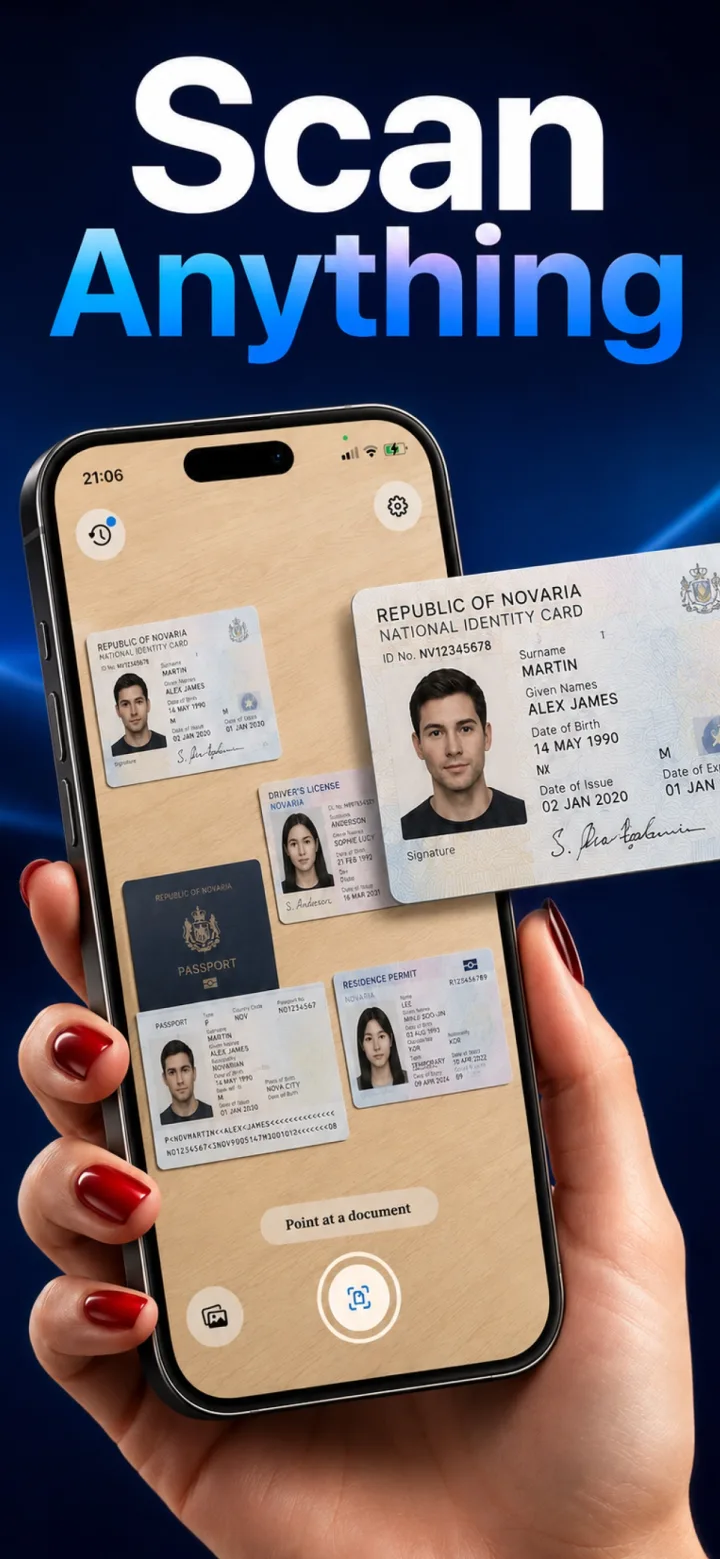
Passports present a specific scanning challenge most other documents don't: a glossy, laminated photo page designed with anti-counterfeiting features that can interfere with a clean capture.
Watch for glare on the laminated page
The glossy lamination reflects light directly back at the camera far more than plain paper — angling the light source slightly, or shooting in diffuse rather than direct light, meaningfully reduces glare that can obscure text.
Flatten the passport fully
A passport's natural curve near the spine can distort the capture if not held fully flat — pressing it open on a flat surface rather than holding it in your hand gives a straighter, more consistent scan.
Double-check the machine-readable zone
The two lines of characters at the bottom of the photo page are dense and small — after scanning, zoom in to confirm they're legible, since this is often the first area to blur if the capture wasn't quite sharp enough.
Do passport security features like holograms interfere with scanning?
They can create some glare or color shift under certain lighting, but generally don't prevent a legible scan of the printed text and photo — the biggest practical issue remains lamination glare, not the security features themselves.